TrimrPix for iOS › Compress photos for email
How to compress iPhone photos for email
Modern iPhone photos are big. Attach five of them and a message that felt ordinary suddenly will not send. Here is why that happens, what iOS does on its own, and how to get the size down deliberately rather than by accident.
Why the message bounces
Two things catch people out. The first is that limits apply to the whole message rather than to each attachment, so five photos at 4 MB are one 20 MB email, not five small ones. The second is less obvious: attachments are encoded for transport before they are sent, and that encoding adds roughly a third to the size. A message that looks like 18 MB on your phone can arrive at the server as something closer to 24 MB.
Gmail's well known cap is 25 MB, and several other providers sit lower, commonly around 20 MB. Corporate mail servers are often stricter still, and they are the ones most likely to reject a message without a useful explanation. If you are sending to a work address, assume less room than you think you have.
What iOS already does, and why it is not enough
Apple Mail asks you to choose an image size when you attach a photo, offering small, medium, large or actual size. That does help for a single message, and it is the right first thing to try. But the options are approximate, you cannot ask for a number, and the choice applies only to that email. The photo in your library is untouched, so the next message starts from the full-size file again and you make the same decision forever.
Mail Drop is the other built-in answer. It uploads large attachments to iCloud and sends a link instead. That works, but it is a different thing from an attachment. The recipient has to download from a link, the files expire after 30 days, and some corporate mail systems strip or block the link entirely. It is a fine fallback and a poor default.
Compressing the photos themselves
The alternative is to make the photos smaller once, properly, so every message you send afterwards starts from a sensible file. This is what I built TrimrPix to do.
You select the photos, set a target size, and the app searches the encoder settings for each photo until it lands under that number. For email, a target of 1 MB per photo is a good default. Ten photos at that size is roughly 10 MB before transport encoding, which leaves comfortable room under a 20 MB cap and still looks like the original on any screen.
The metadata switches matter more here than people expect. Photos carry location, camera settings and Apple's own extras, and those can be a meaningful part of the file. Stripping GPS before emailing a photo to a stranger is worth doing for its own sake, and it makes the file smaller at the same time.
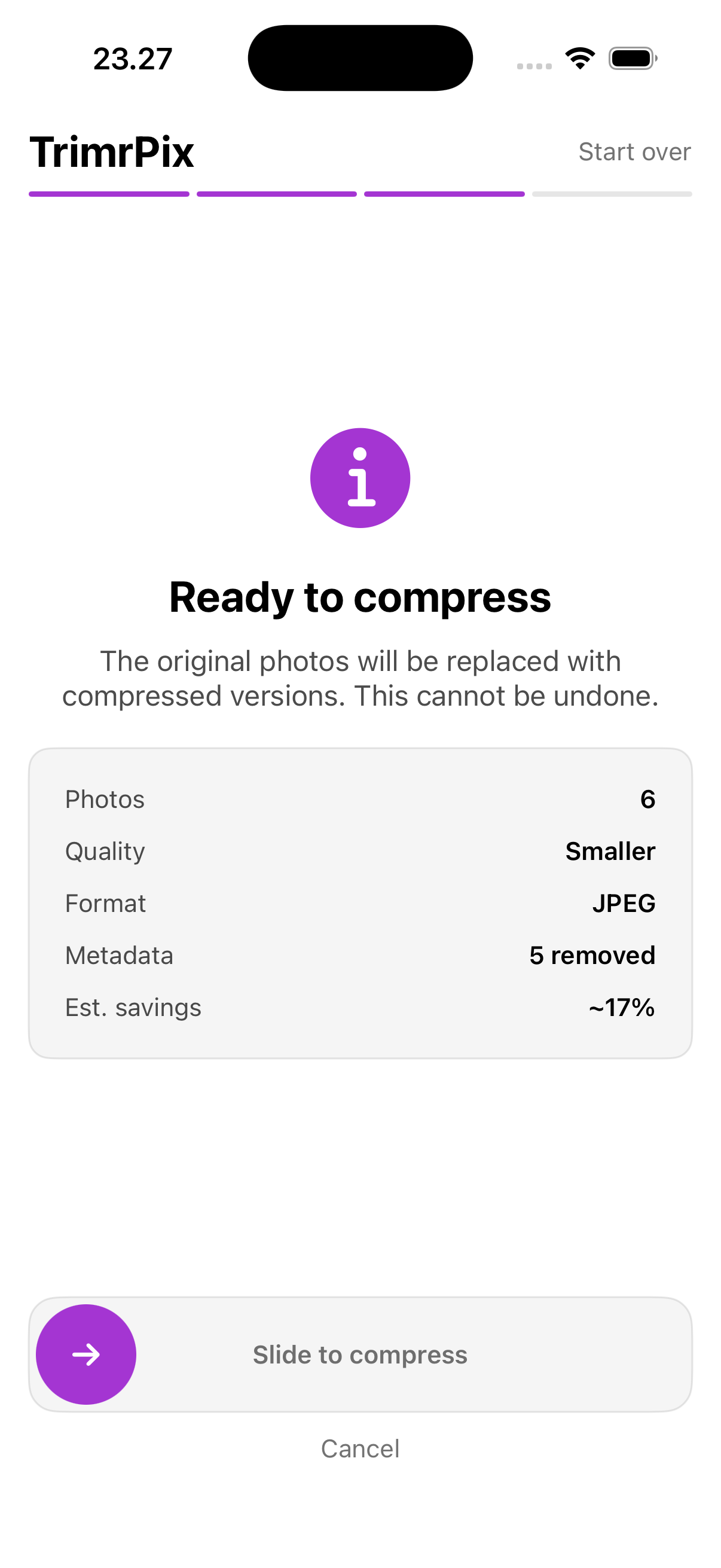
The difference from the Mail approach is that the photo in your library is the one that gets smaller. TrimrPix replaces the original rather than saving a second copy, so you are not choosing between a tidy library and a sendable file. There is no "Compressed" album to clean up later, and the next time you attach that photo it is already the right size.
TrimrPix for iOS compresses photos in place, on your iPhone, with no cloud and no accounts. One-time purchase.
Download on the App Store$1.99 · Pay once · Requires iOS 17 or later
One honest caveat
Compressing in place cannot be undone. That is the point of the app, and it is also the thing to be careful about. If a photo is one you would want at full resolution later, for printing or for archiving, compress a copy or leave it alone. TrimrPix shows the estimated saving and asks you to slide to confirm before it changes anything, precisely because this is not reversible.
Common questions
Does the iPhone Mail app compress photos automatically?
Apple Mail offers a size choice when you attach an image, but the options are approximate and apply only to that message. The photo in your library is unchanged, so the next email starts from the full-size file again.
How small should a photo be to email it?
Around 1 MB per photo is comfortable for anything that will be viewed on a screen. That keeps a handful of photos well inside typical provider limits and still looks like the original.
Why did my email bounce when each photo was under the limit?
Limits apply to the whole message, not to each attachment, and encoding an attachment for transport adds roughly a third to its size. Several photos that each look safe can add up past the cap.