TrimrPix for iOS › Compress to a specific size
How to compress a photo to a specific size on iPhone
Some uploads do not care how good your photo looks. They care that it is under 500 KB, or under 2 MB, or under whatever number the form decided on. Here is what actually works on an iPhone, and where the built-in tools stop being useful.
The iPhone cannot do this on its own
This is worth saying plainly, because a lot of advice pretends otherwise. The Photos app has no file size field and no export quality slider. You can crop, and you can change the dimensions, but neither of those lets you say "make this 800 KB". You change the pixels and hope the bytes follow.
The usual workarounds are indirect in the same way. Sending a photo to yourself in Messages or Mail and saving the received copy does shrink it, but you do not control the result and you get a second copy in your library. Screenshotting a photo re-encodes it at screen resolution, which throws away real detail and still gives you no number to aim at.
So the honest answer is that hitting a specific size on iPhone needs something built for it.
What "a specific size" really means
File size is the output of an encoder, not a setting you dial in. When you ask for a JPEG under 1 MB, something has to try a quality level, look at the resulting bytes, and try again. That search is the whole job, and it is why a slider labelled "quality" never quite answers the question you are asking.
Two things change the answer besides quality. Metadata takes up real space, especially on photos carrying location, camera data and Apple's own extras, so stripping what you do not need can move a file several hundred kilobytes on its own. And every format has a floor. A detailed photo at maximum compression will still be larger than 50 KB, and no tool can change that without shrinking the dimensions too.
How TrimrPix does it
I built TrimrPix to make this one step. You pick the photos, switch to Target size, and either take one of the presets at 500 KB, 1 MB, 2 MB and 5 MB, or type the exact number you need. The app then binary-searches the encoder settings for each photo separately until it lands under your target, and it shows you the estimated saving before anything changes.
Each photo is judged on its own, so a batch where one image is already small and another is enormous does the right thing for both. Photos that are already under the target are left completely alone rather than being re-encoded for no reason.
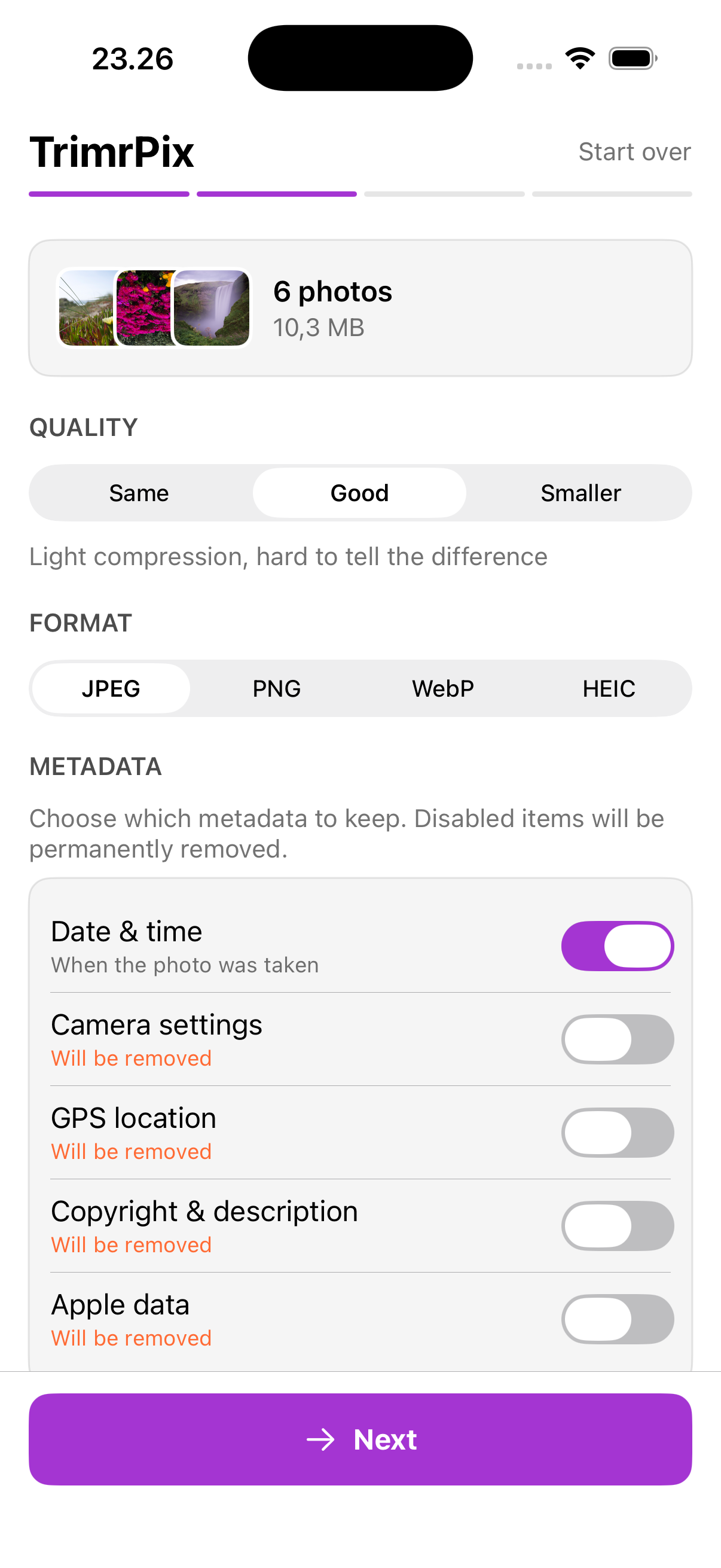
The part that matters for a form upload is what happens next. TrimrPix replaces the original in your library instead of saving a smaller copy beside it. There is no "Compressed" album to sort out afterwards, and the photo you attach is the photo you already had, at the size you asked for.
TrimrPix for iOS compresses photos in place, on your iPhone, with no cloud and no accounts. One-time purchase.
Download on the App Store$1.99 · Pay once · Requires iOS 17 or later
Picking a target that will actually work
If the form states a limit, aim under it rather than at it. A form that says 2 MB is usually measuring the file after it arrives, and a target of 1.5 MB gives you room without any visible cost. If the limit is very small, say 200 KB for a passport-style photo, expect to lose visible quality, because that is a real constraint rather than a tool limitation.
If you do not know the limit, 1 MB is a sensible default for anything that will be looked at on a screen. It is small enough for almost every upload and large enough that a normal photo still looks like itself.
Common questions
Can the iPhone Photos app compress a photo to a specific size?
No. The Photos app has no file size control and no export quality setting. Cropping and resizing change the pixel dimensions, which affects file size indirectly and unpredictably.
Why does a photo end up larger than the size I asked for?
Usually because metadata was kept, or because the image is already near its floor for that format. A photo at maximum compression can still exceed a very small target, in which case the result is as small as that format allows.
Does compressing to a target size change the file format?
In TrimrPix, no. Each photo keeps its original format, so a HEIC stays HEIC and a PNG stays PNG. Converting would force a copy rather than an in-place replacement.